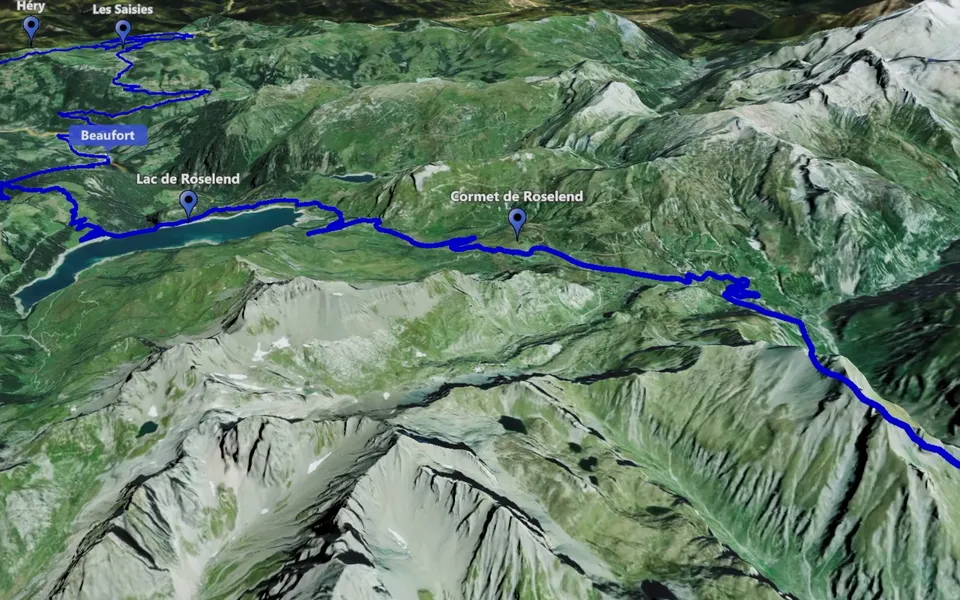
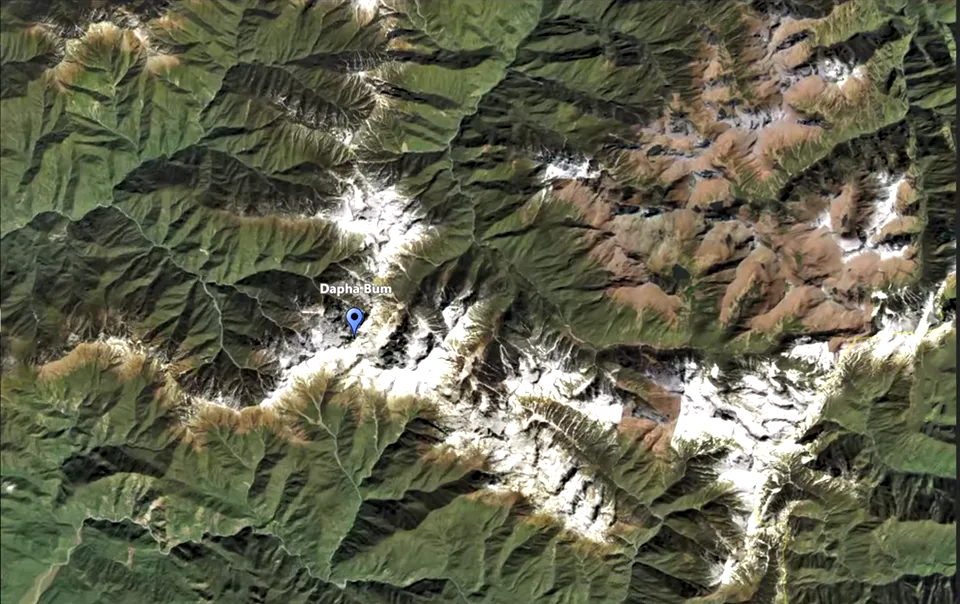
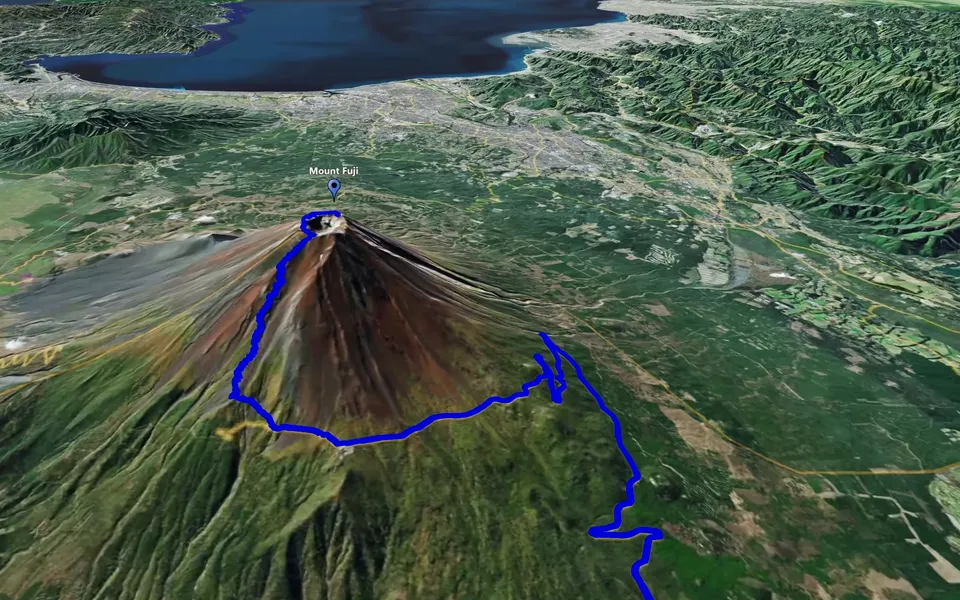
Build the story before you build every map shot. Decide where the audience needs geographical context, create a clip for each of those moments and combine the results with your footage in a video editor.
Make a short map plan for the story
Review the footage and note the moments when the location changes or the journey needs explaining. Write one sentence for each map scene: introduce the destination, show the road to the next stop, or reveal the landscape around a landmark. This gives every animation a reason to be in the edit.
A simple sequence can begin with a zoom towards the destination, continue with footage from that place and return to a route animation when the story moves on. Add an orbit when one location needs more attention.
Prepare separate clips for separate tasks
Use Track Following when the path is important, Point-to-Point when the story centres on selected stops and Circling Around when the audience should spend time with one place. Zoom+ introduces a destination from a wider view; Zoom- returns from a location to broader context.
Match the opening and closing views to the neighbouring footage. Set marker visibility and appearance timing around the information the viewer needs. Save versions before experimenting so you can compare a different camera view without losing a useful scenario.
Create the files and assemble the sequence
Follow the export workflow to create and check each video. Choose an aspect ratio that suits the edit and review the entire file, including its first and last frames.
Import the map videos into your editor with the filmed material. Place each map at the point it explains, then trim the scene to fit the narration and surrounding shots. A map can be brief when it answers one clear question; a more complex journey may need a longer explanation.
Review geography and rhythm together
- Can a viewer tell where the next scene takes place?
- Does each map add information that the footage alone does not show?
- Are the route and markers readable at the final viewing size?
- Does the destination remain visible long enough before the cut?
Remove repeated explanations and watch without pausing. For import steps, use the guides for Premiere Pro, DaVinci Resolve or Final Cut Pro.