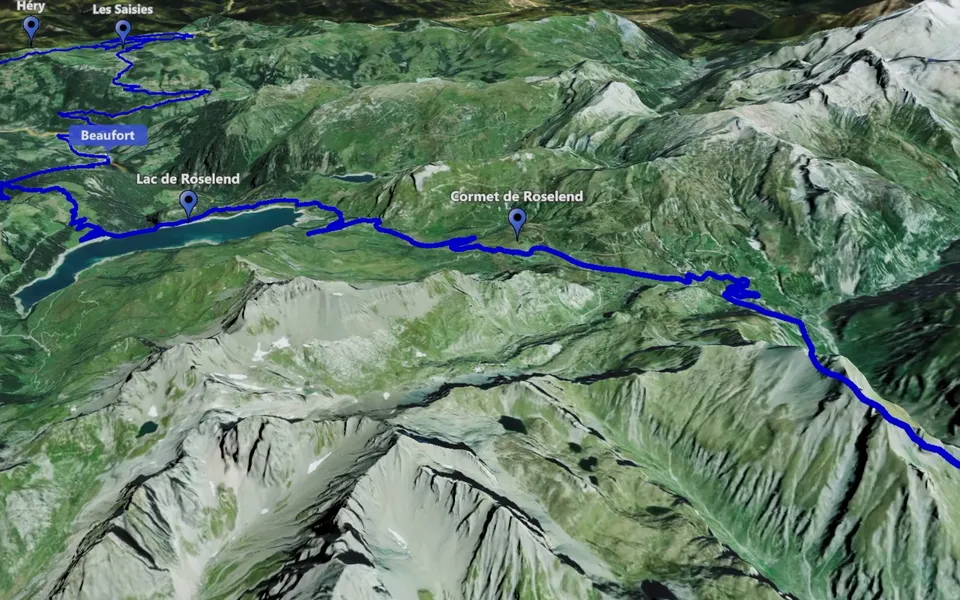
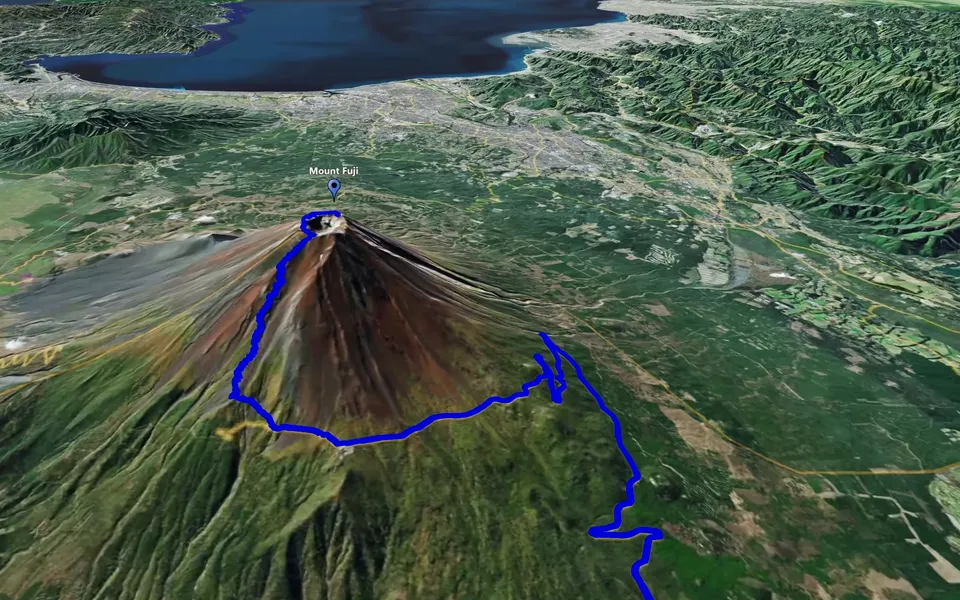
Point-to-Point connects selected places with camera movement. Use it when the important part of the story is a sequence of locations, then set the view at each stop so the audience can recognise where it has arrived.
In this guide, “map flights” means camera movement between selected locations. To create Airplane Flight Animation, use the Track Following clip type.
Choose the stops the viewer needs
List the places that explain the next part of your video. A starting city, a viewpoint and a final destination can form a readable sequence without showing every place you visited. Match the stops to the chapters or footage you intend to use.
Key points belong to the camera scenario. A track describes a route on the map. Keep that distinction in mind when showing selected locations and an animated path together.
Set up the camera sequence
- Create a Point-to-Point clip.
- Prepare the key points between which the camera should travel.
- Set a stop height for each point. Choose a wider view for context or a closer view for a particular place.
- Preview the transitions. In the demonstrated algorithm, more distant points produce a higher rise between stops.
- Review the complete scenario and save the version you want to keep.
The camera points down in the sequence shown in the full guide. Judge each stop together with the movement before and after it. A view that is clear while paused may need more attention when it appears briefly between transitions.
Add a track only when it helps
If an animated track is part of the scene, check that it passes near the selected key points. The route and camera stops should support the same explanation. Creating camera stops does not automatically build a road route.
If following the path is the main task, Track Following may provide a clearer result. For a sustained view of one location, use Circling Around.
Check the sequence as a video
- Each stop adds information needed by the story.
- The camera height makes the place recognisable.
- A route, when included, remains legible during the transitions.
- The final view prepares the audience for the next scene.
After saving the scenario, use the export workflow to check the finished clip before placing it between destination chapters.