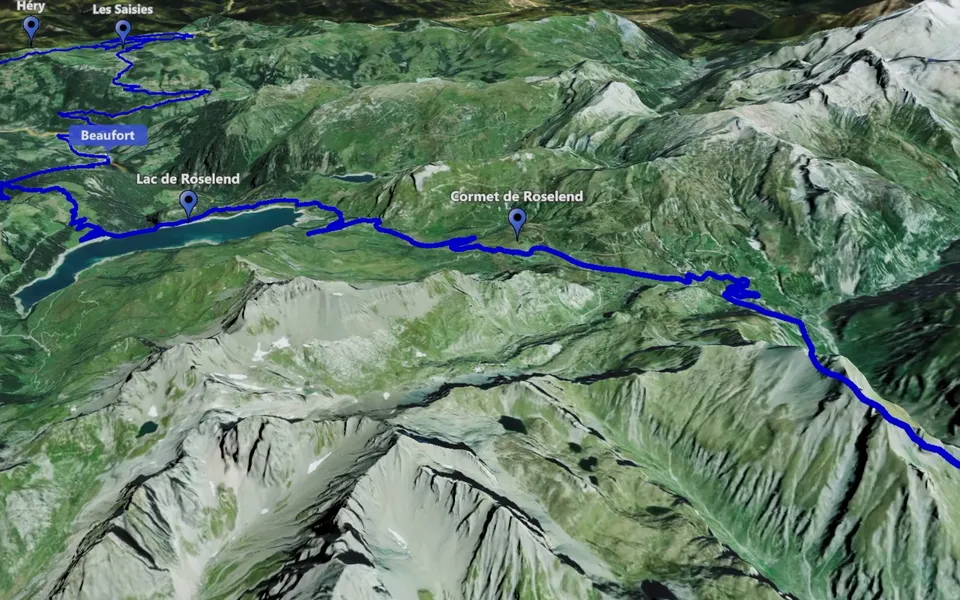
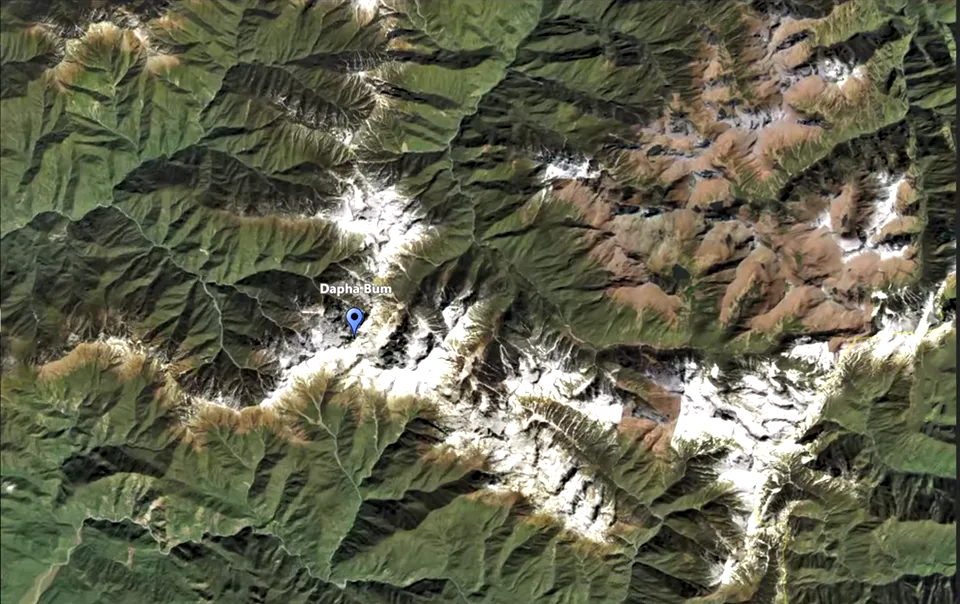
A location orbit starts with a clear centre. Create a Circling Around clip, assign the place as its key point and shape the camera movement around it. A route is optional for the orbit itself.
Assign the centre of the orbit
- Prepare an Event containing the place you want to show.
- Create a Circling Around clip and enable the points you need. Hide points that do not belong in this scene.
- Assign the orbit centre. In the guide, the selected point is dragged into the Key points area.
The key point tells the camera what to rotate around. If the orbit cannot start, check that a centre has been assigned. A visible place marker and an assigned orbit centre are different things.
Shape the changing view
Set the radius, camera height and tilt, then choose the direction, starting angle, duration and amount of rotation. These controls determine how much of the surroundings the shot reveals and where the movement begins.
The guide demonstrates a 360-degree rotation lasting 20 seconds. Use that as an example rather than a required setting. Your scene may need a different movement to introduce the destination and arrive at a useful closing view.
Preview the whole orbit. Check the subject at the beginning, halfway through and near the end. A composition that works from one side may conceal the place from another.
Review markers and any animated route
If you want a route to animate during the orbit, make the relevant track active. Keep the location as the main subject and check that the path stays readable while the camera moves. Review Points Appear when markers should enter at a particular moment.
The built-in object library can help present a place. Choose objects around the information the viewer needs so additional detail does not make the destination harder to recognise.
Save the orbit for your edit
Save a version after finding a useful camera setup. Then compare it with a wider or closer alternative if needed. The export guide covers checking the completed file.
To explain how you reached the destination, place the orbit after a route sequence. See map clips for video editing for ways to connect those scenes with your footage.