
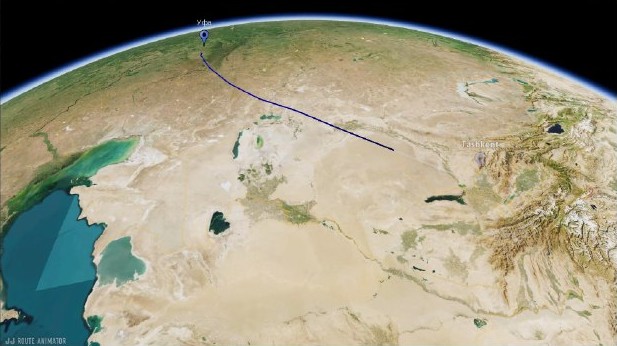
Airplane Flight Animation
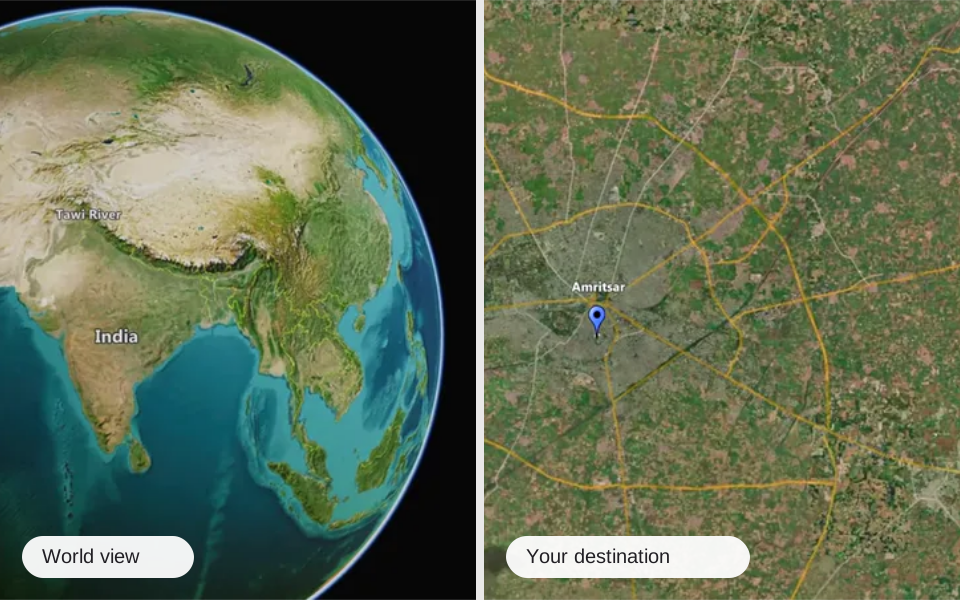
Give an air journey a clear place in your travel story. Use a map sequence to connect departure and arrival, then lead into footage from the destination.
What can you create with JJ Route? Explore animated map ideas for travel stories, road trips, air journeys, video editing and vertical videos. Each example connects the result with the tools and tutorials that help you create it.

Give an air journey a clear place in your travel story. Use a map sequence to connect departure and arrival, then lead into footage from the destination.
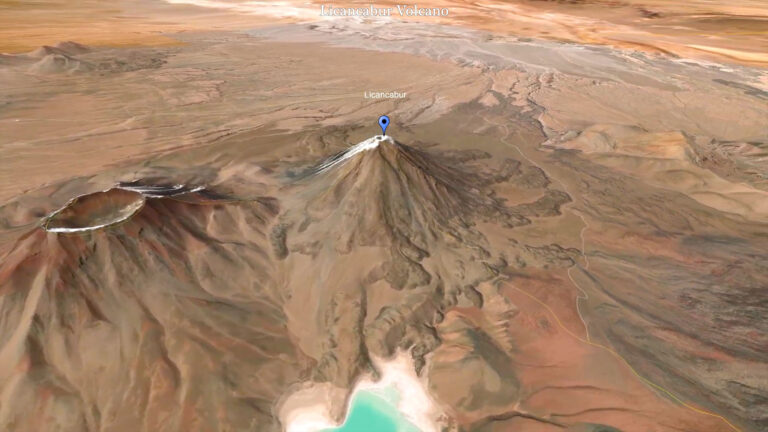
Give YouTube travel stories a clear sense of place. Use a map zoom for an introduction, a route sequence to explain the journey and a location orbit to bring a destination into focus.
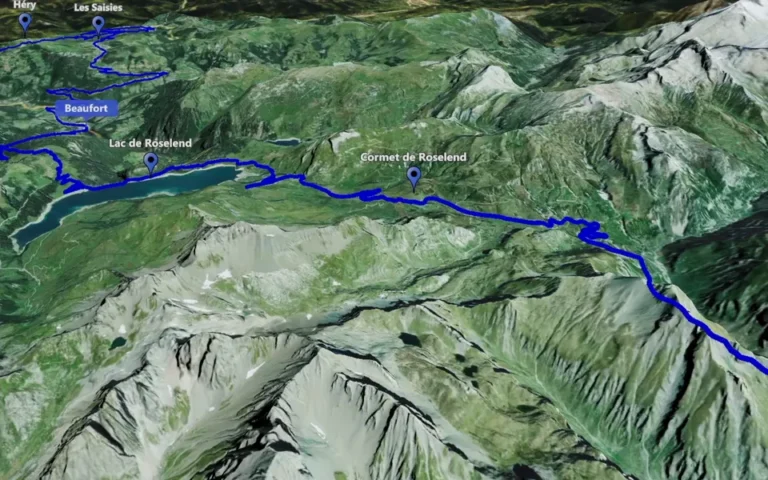
Turn a road trip into a clear travel story. Show the route between stops, introduce the places that matter and use map clips to connect driving footage with each destination.
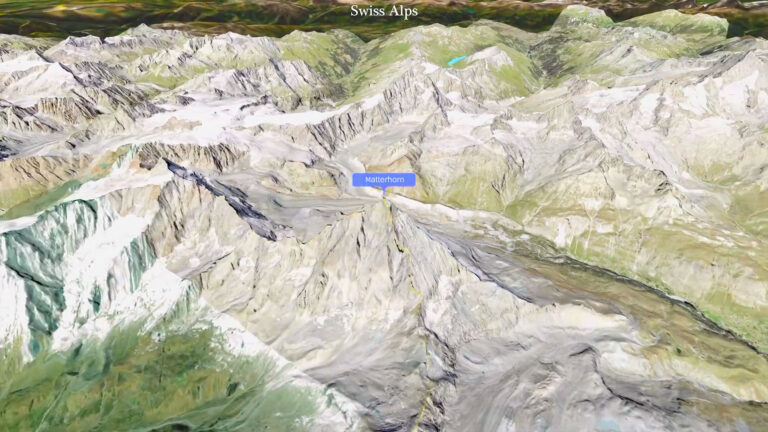
Use map clips as geographical introductions, route explanations and transitions. Combine camera movements with your footage, check the exported files and shape the sequence in your video editor.
Build a short map story for a vertical frame. Keep the route, destination and markers readable, choose a camera movement for one clear idea and review the output before adding it to your edit.
Use an animated map to introduce a flight, follow a road trip, connect travel scenes or explain a destination in a YouTube video. Explore ideas for longer edits as well as vertical map videos for Reels and Shorts.
No. Airplane Flight Animation uses Track Following to visualise an air journey. It is an example of what you can create with that clip type. Point-to-Point instead describes camera movement between selected places.
Yes. Search for places and build a route in JJ Route Animator, or import a prepared KML or KMZ file. Then choose the camera movement that suits your story and refine the framing and timing around your own journey.
Yes. Choose a vertical aspect ratio and review the composition in that frame. Check that the route and important places remain visible throughout the movement, rather than relying on a crop of a horizontal shot.
Export the map clip from JJ Route Animator, then place the video file alongside your footage in your editor. Use it to introduce the journey, connect destinations or give viewers context before the next scene.
Give every journey a scene worth watching. Turn your route into an animated map, then make it part of your next video.
We use cookies to keep the website working. With your permission, we also use Google Analytics and load embedded YouTube and Vimeo videos. Choose which optional services you allow. You can change your choice at any time.
It’s almost ready! JJ Route Animator App is currently in beta-testing. If you’re a professional video blogger with a YouTube channel (or Instagram account, for example).
Please contact us and we’ll provide you with a working version of the App.