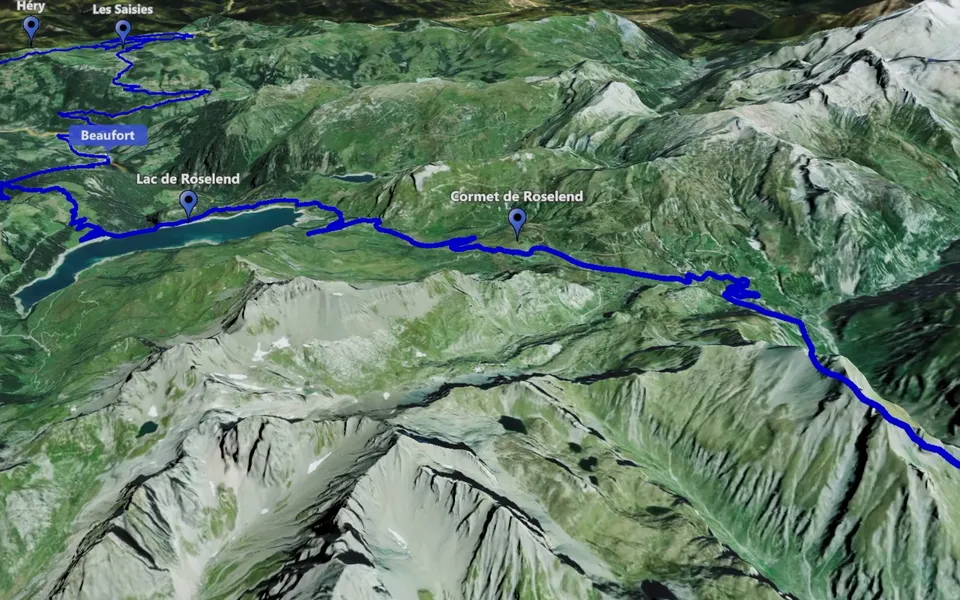
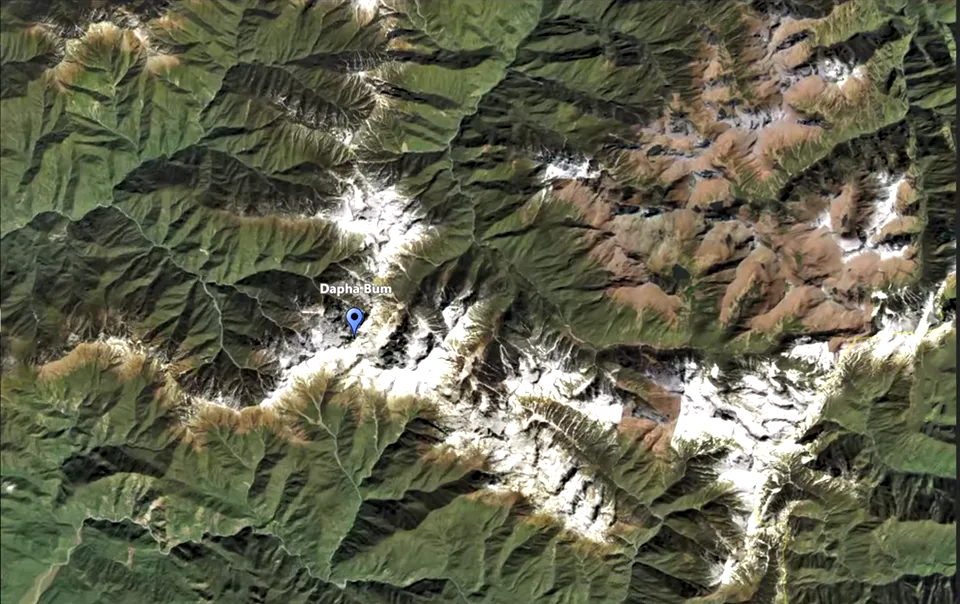
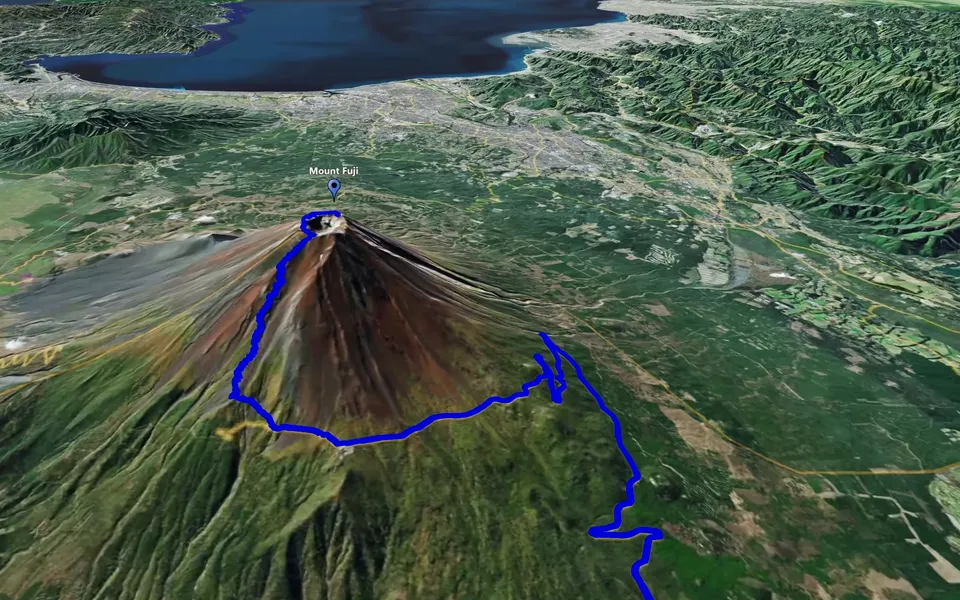
A map video can connect destination footage in a Final Cut Pro project without asking viewers to guess where the story has moved. Create the geographical shot in JJ Route Animator, then import the finished file and shape it around the edit.
Prepare the map clip on your Mac
JJ Route Animator is a desktop application available for macOS and Windows. Plan the map around one task: introduce the location, follow a route or connect several stops. For a destination introduction, start with a map zoom or a location orbit.
Create and watch the finished video before import. Check both the moving view and the final frame, using the export workflow. Store the file with the source media you intend to retain for the edit.
Import the file into Final Cut Pro
Apple documents importing media from your Mac through the Media Import window and by dragging files from Finder. Choose the approach that suits your project and review where Final Cut Pro will store or reference the media. See Apple’s guide to importing from your Mac or a storage device.
Add the map video to your project at the transition it explains. Keep the relationship simple at first: establish where the story is going, show the map connection and move into footage recorded there.
Match the map to the surrounding footage
Watch the opening and closing views beside adjacent shots. The map should prepare the next location before the cut. If the scene includes narration, check that the named place is visible when the viewer hears about it.
Review the map in the project’s actual frame. A route or marker close to the edge can become less useful after reframing. For a vertical project, plan the map output around the tall composition and inspect it at the intended viewing size.
Keep useful versions and source files
Save the preferred map scenario before trying another camera setup. Keep the exported source file available as you refine the edit. If breaking points give you separate plans inside one clip, cut the video into the sections needed for the story.
Watch the entire travel section without pausing. The complete travel video workflow can help you decide where additional maps add useful information and where the footage can carry the story.