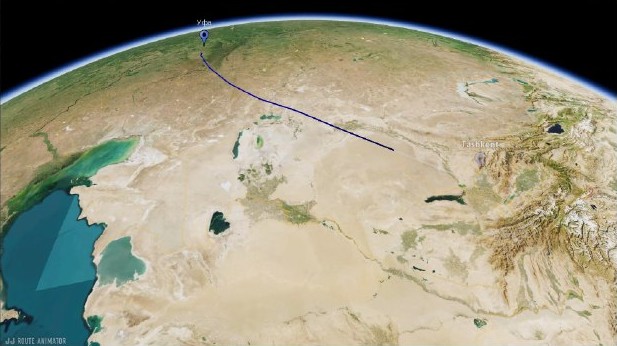
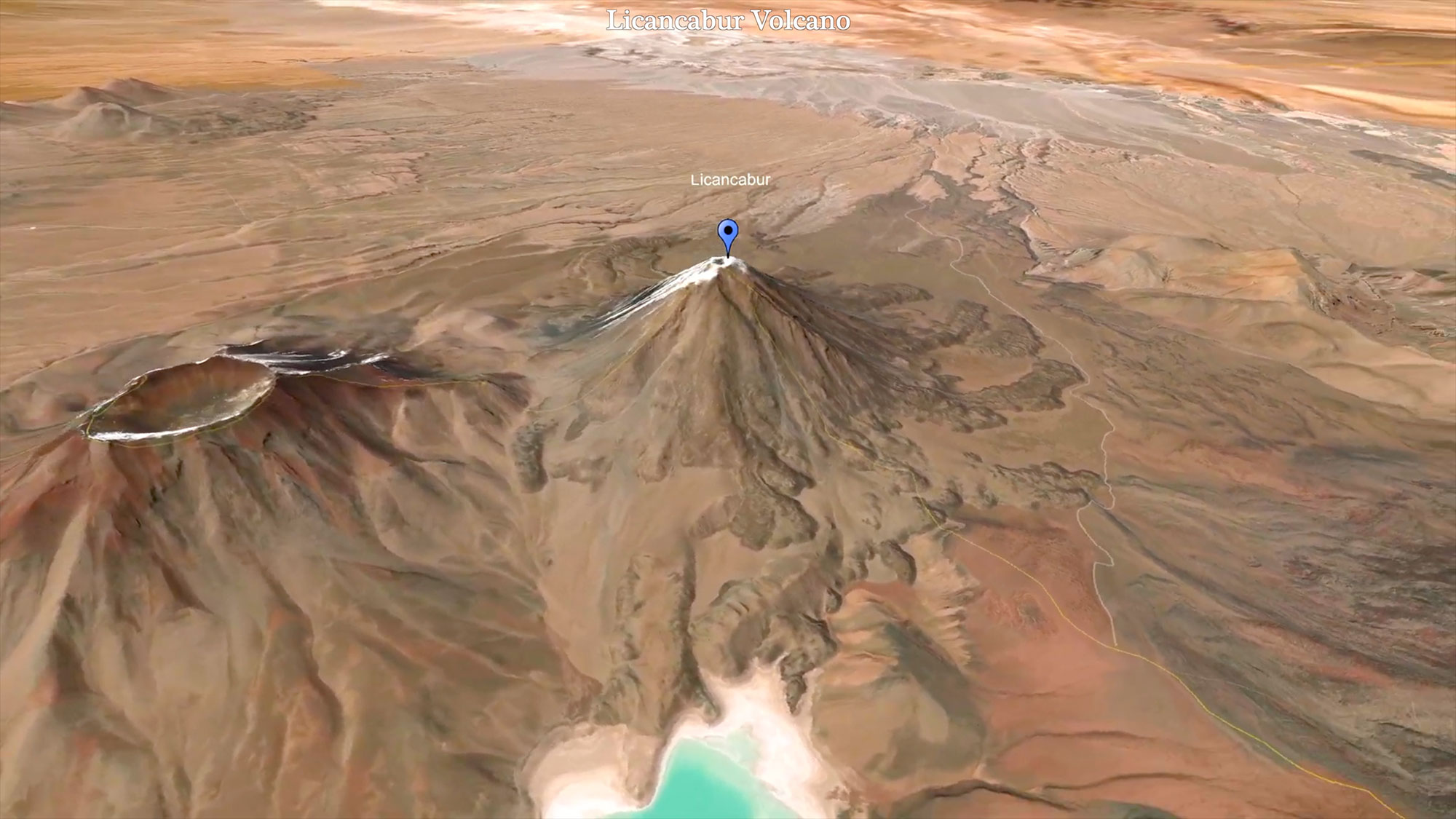
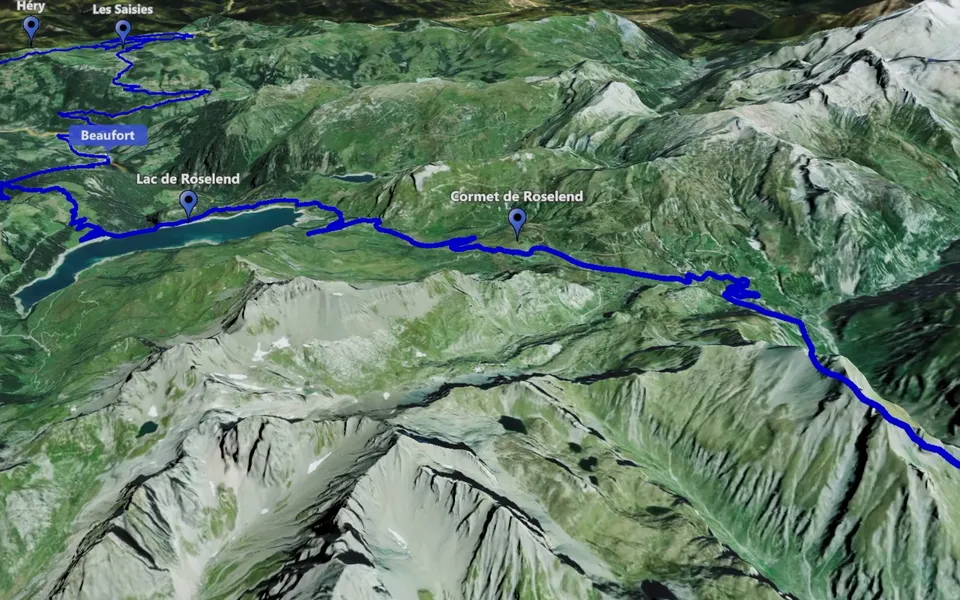
A map clip can introduce a destination, connect two scenes or explain a journey that would be difficult to show with footage alone. Create the geographical sequence in JJ Route Animator, then use the exported video as part of your edit.
Choose the job of each map clip
Before making the animation, identify what the audience needs to learn at this point in the video. A zoom can establish where a scene takes place. Track Following explains the path of a journey. Point-to-Point links a sequence of locations. An orbit gives one place a more sustained introduction.
The Matterhorn example above suggests a role for a map in a longer edit: introduce the setting, then cut to footage filmed there. Build the transition around the relationship between those two views.
Prepare useful beginnings and endings
Watch the map with the preceding and following shots in mind. The first view should make the change of scene understandable; the last should leave the audience ready for the next shot. A strong middle section cannot compensate for a destination that disappears before the viewer has recognised it.
Save versions while comparing camera views or timing. Where breaking points divide the map scenario into separate plans, cut the exported video into the parts you need inside your editor. Review marker timing as well as camera movement so the information arrives when it is useful.
Bring the video files into your editing project
Create the map video in the aspect ratio needed for the project and check the finished file before import. The export tutorial covers that review. Then use the guide for Premiere Pro, DaVinci Resolve or Final Cut Pro to place the clip with your footage.
Check the edit at its intended viewing size. Keep the route readable, give important places enough screen time and trim the map to the explanation the scene actually needs. For a complete sequence, follow the travel video workflow.