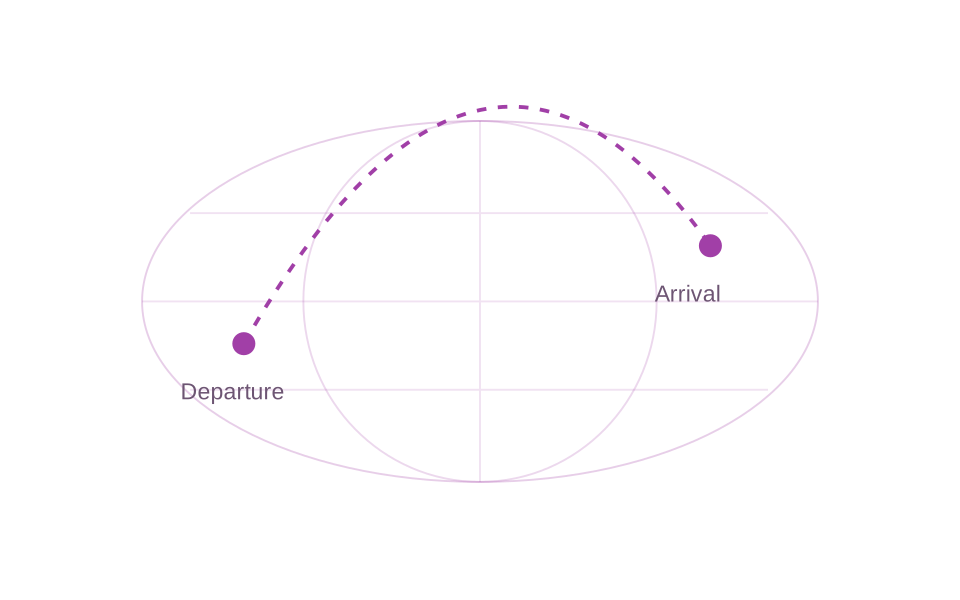
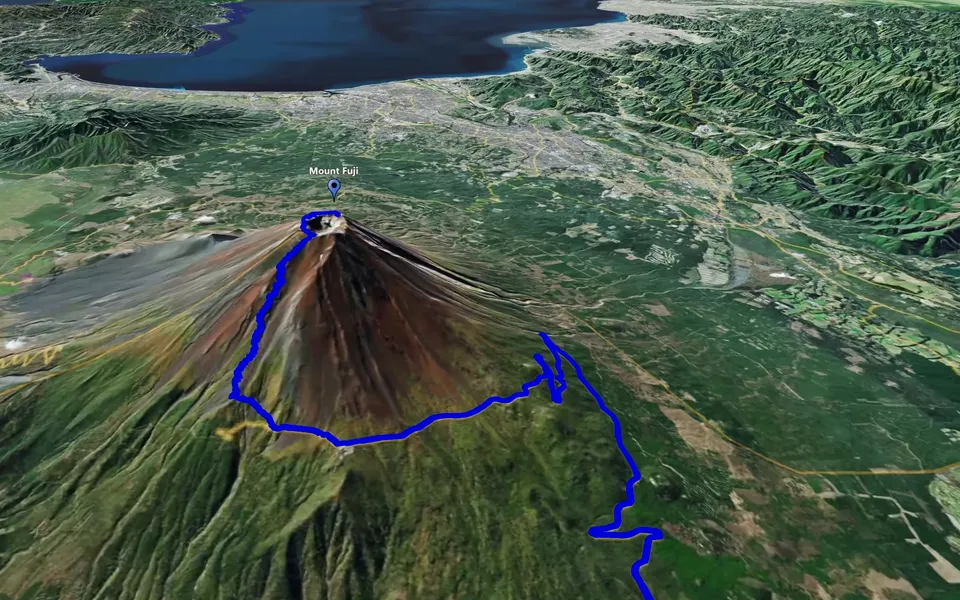
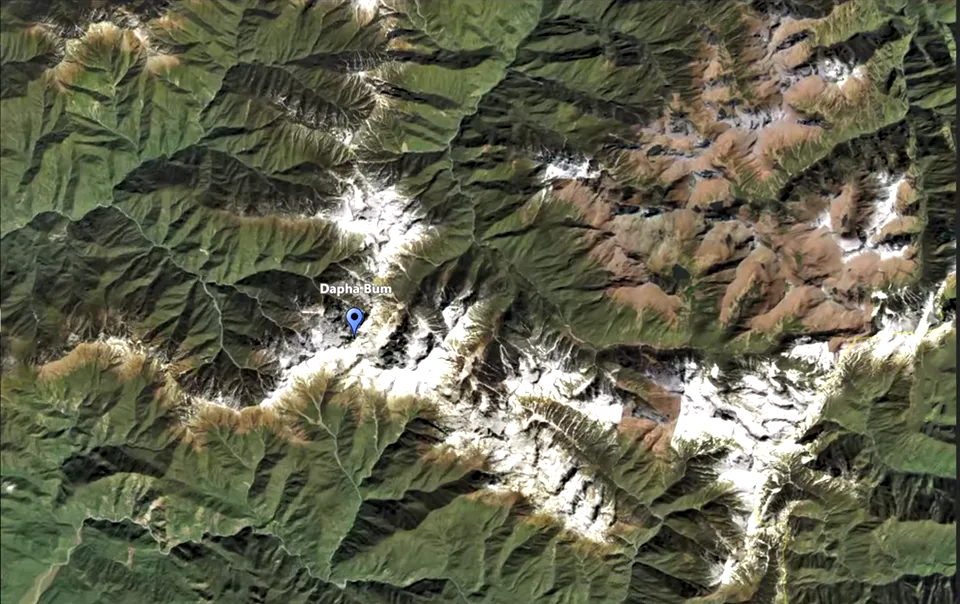
Turn a journey into a moving map that your audience can follow. Track Following in JJ Route Animator moves the camera along a route, connecting the places in your travel video and showing how the landscape changes along the way.
A road trip is more than its destination. The bends in a mountain road, the approach through a valley and the distance between two stops can all help explain what the journey felt like. Travel map animation gives those connections a place in your edit, alongside the footage you recorded on the ground.
Track Following keeps the path central to the scene. Use it to introduce the whole journey, explain one stretch between locations or return to the map as a new chapter begins. You can make the map sequence as prominent or as brief as the story needs.
JJ Route Animator includes place search and route building inside the application. Begin with the part of the journey you want to explain, then decide which locations deserve extra attention. A short hiking section and a long road trip ask for different amounts of geographical context; neither needs every detail of the trip on screen at once.
The route and clip duration are used to calculate an initial camera height for Track Following. You can then adjust the height, view and tilt to change the composition. The starting result is a foundation for your shot, with room to refine how closely the camera follows the landscape.
A higher view can make a winding journey easier to follow, while a closer view gives a particular stretch more attention. Try both before deciding. The useful question is whether the viewer can understand the route and recognise its surroundings as the camera moves, rather than whether one still frame looks dramatic.
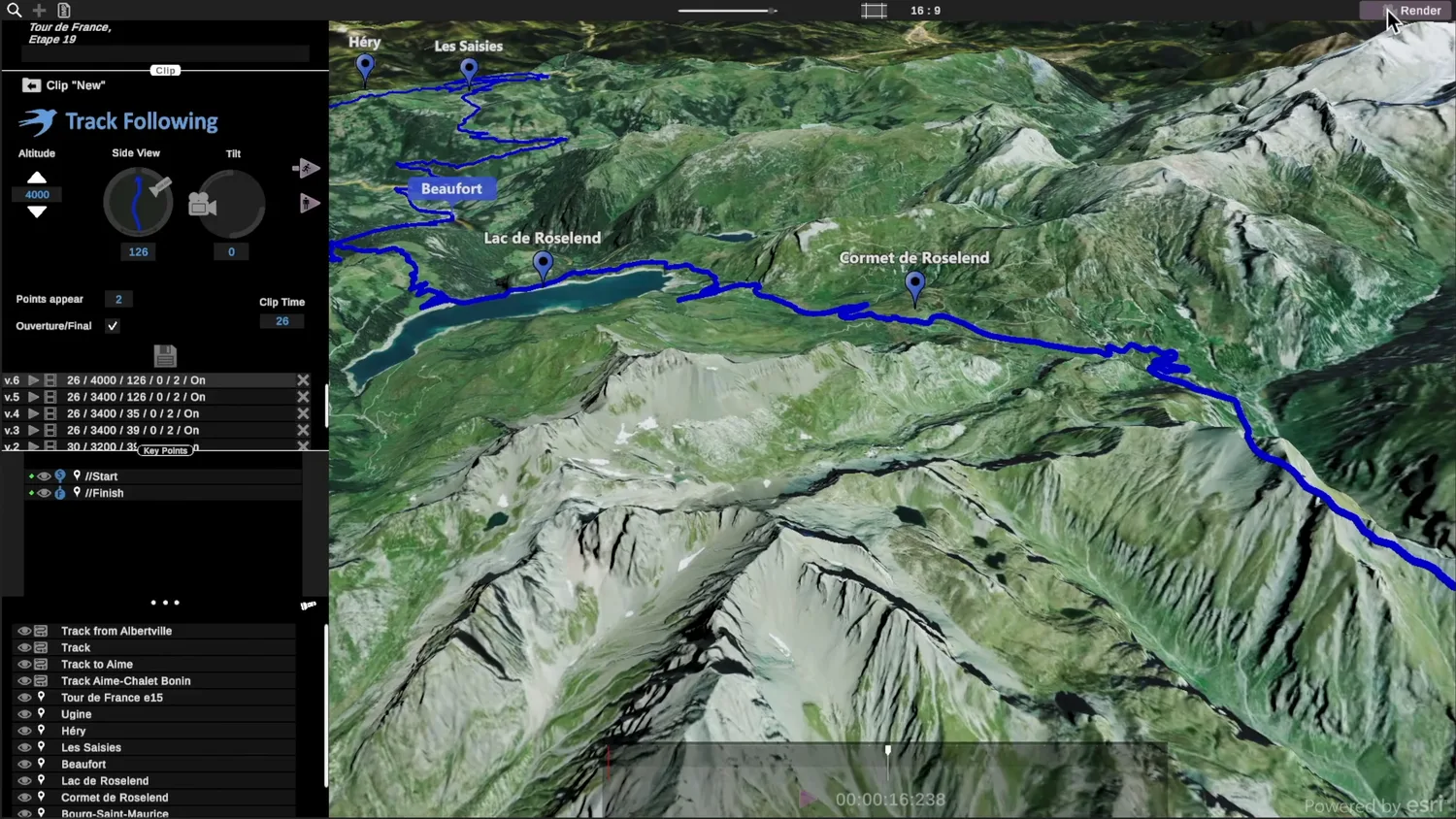
A map introducing the next destination has a different job from a sequence accompanying a longer explanation. Choose the duration with that role in mind, then review the camera framing again. In Track Following, duration and the initial camera height are connected, so a timing change is also a reason to check the view.
Markers can help viewers recognise places along the route. Points Appear controls when markers appear relative to the animated track reaching a point. Breaking points can create separate shots within the clip, with pauses in the track movement, giving you material to cut into shorter sections in your video editor.
Before creating the final clip, check three things in the preview:
- The route remains easy to see throughout the camera movement.
- Markers support the journey without competing with its most important section.
- The opening and closing views connect naturally with the footage around them.
Save the version you want to keep before experimenting further. Then create the map video in the aspect ratio that suits your edit and combine it with your footage. A clear route sequence can orient the audience without interrupting the travel story.